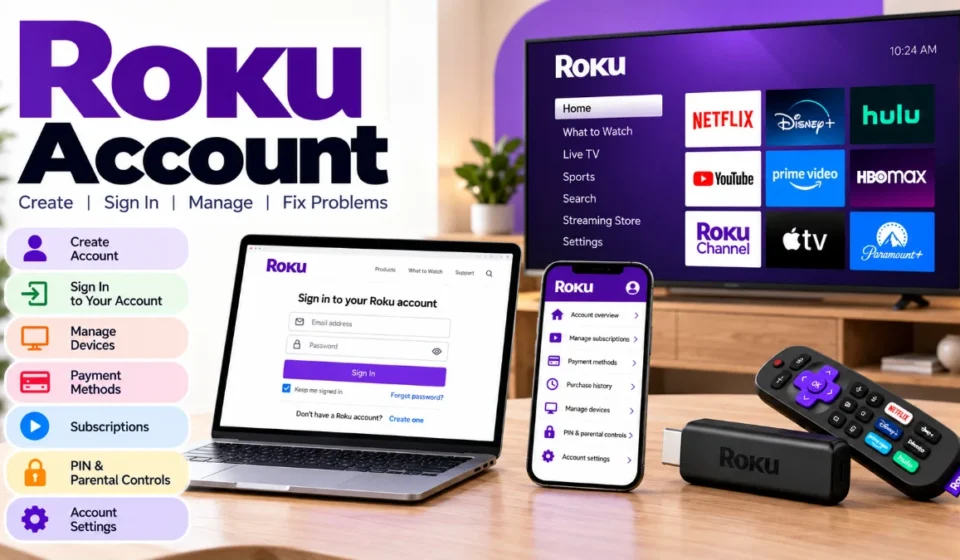

A Roku account brings your Roku streaming devices, eligible subscriptions, purchases, payment settings, and account preferences together. You need one when activating a Roku streaming device, but creating the account itself does not require a Roku membership fee.
This guide focuses on those practical questions so you can set up, manage, secure, and troubleshoot your account without confusing Roku settings with individual streaming-service accounts.
Roku Account Basics: What the Account Actually Does
Think of the account as the administrative layer behind your Roku devices. It connects supported devices with account-level information and gives you one place to handle many settings.
Features Managed Through Your Account
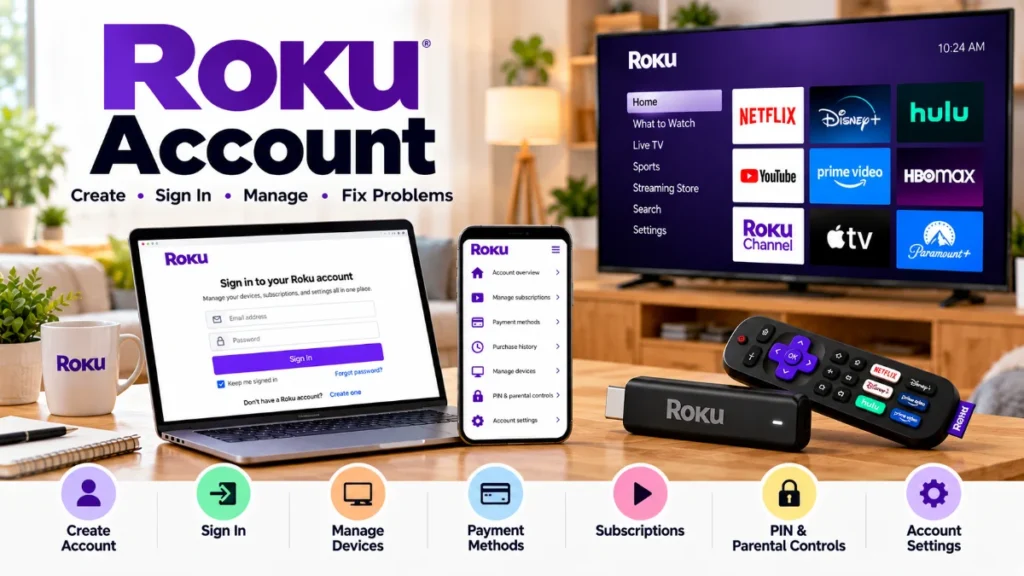
Depending on the service and device, you can use the account to:
- Link and manage Roku devices
- Review eligible subscriptions
- View purchase information
- Update billing details
- Configure a Roku PIN
- Control certain purchase and parental settings
- Update account information
- Manage account security
This does not mean every app or streaming subscription on your Roku is controlled by Roku. Services purchased directly from another company may still need to be managed through that provider.
Does Creating an Account Cost Money?
Creating an account and activating a Roku device are free. This is different from paying for premium streaming services, renting content, or making other purchases.
For example, someone could create an account, activate a device, and use free streaming options without paying a monthly fee simply for having the account.
Be cautious if an unofficial page claims you must pay an activation fee.
Getting Started With a New Roku Account
The easiest approach is to use an email address that you regularly check. That email becomes important for sign-in, security messages, and password recovery.
Creating Your Account
The exact interface can change, but the general process is straightforward:
- Go to Roku’s official website or begin device setup.
- Choose the option to create an account.
- Enter a valid email address.
- Create a unique password.
- Configure the requested account preferences.
- Add billing information when applicable.
- Complete any email or security verification requested.
Do not create a second account simply because you bought another Roku device. If you already have an account, you can often link the new device to it.
Do You Have to Add a Credit Card?
A payment method can make purchasing eligible content and subscriptions easier, but adding one does not turn the free account into a paid monthly membership.
Before entering payment details, make sure you are using an official Roku page.
Signing In and Finding the Correct Account
A common household problem is having more than one email associated with different Roku devices.
Signing In Through a Browser
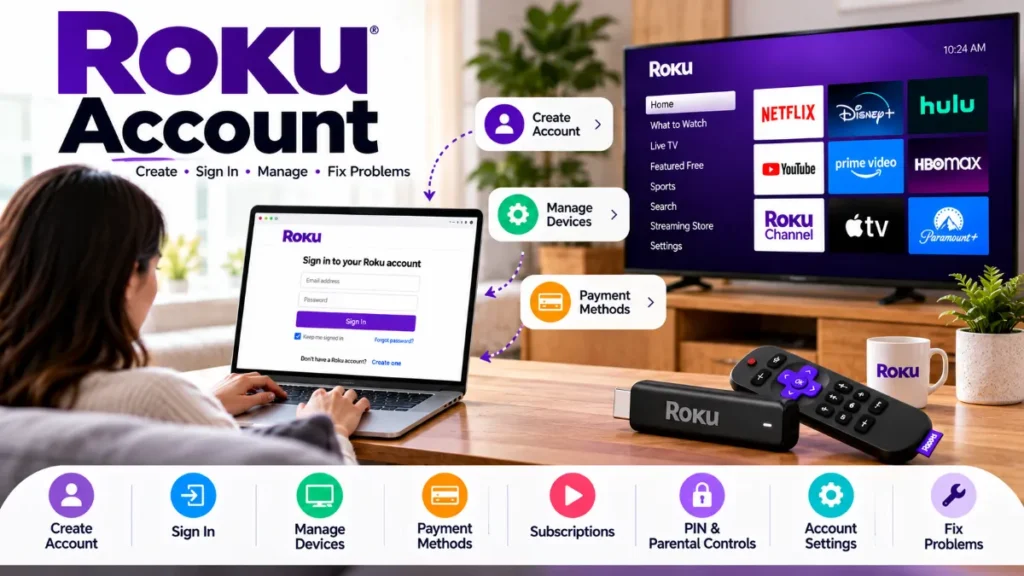
Visit Roku’s official website and open the account sign-in page. Enter the email and password associated with your account and complete any required security verification.
Once signed in, account options may include subscriptions, purchase history, payment information, PIN settings, and linked devices.
Finding the Email Connected to Your Roku
If you don’t remember which account is being used by a device, check the device information.
A common route on Roku devices is:
Settings → System → About
Look for the account email displayed there.
This is worth checking before resetting a password because you may simply be attempting to sign in with the wrong email.
Recovering Access When You Forget Your Password
Losing access does not normally mean you need to create a new account.
Resetting the Password
Use Roku’s official password-reset page and submit the email connected to the account. Follow the instructions delivered to that inbox.
If nothing arrives:
- Check spam and junk folders.
- Confirm the email spelling.
- Verify the email shown on your Roku device.
- Allow time for the recovery message to arrive.
- Use official Roku support if you cannot recover access.
Never share a password or one-time security code with someone claiming to be support.
Activating and Connecting Roku Devices
Activation connects the physical Roku device with the account you intend to use.
What Happens During Device Activation?
A typical setup follows this path:
Connect the Roku → Connect to the internet → Follow setup instructions → Sign in or create an account → Complete activation
Always follow the instructions displayed by the device and official Roku services rather than searching for random third-party activation pages.
Managing Multiple Roku Devices in One Household
You don’t necessarily need a separate account for every television.
One Account for Multiple Roku Devices
Using the same account can simplify management when several Roku devices belong to the same household.
For example, a family with a living-room Roku and bedroom Roku may prefer one account so account-level settings and purchases are easier to track.
When Separate Accounts May Make Sense
Separate accounts may be useful when devices need independent account settings, purchasing arrangements, or content organization.
| Shared account | Separate accounts |
| Easier centralized management | More account separation |
| Purchases easier to track together | Independent purchase histories |
| Convenient for one household | Useful for distinct users/setups |
| Shared account-level controls | Separate account controls |
Consider who owns the devices and who should control purchases before deciding.
Read More: Dodgers vs Giants
Managing Streaming Subscriptions
This is where many users get confused: having an app on Roku does not automatically mean Roku bills you for it.
First Identify Who Bills the Subscription
Before trying to cancel anything, determine how you originally subscribed.
| What you find | What to do |
| Subscription appears in Roku account | Manage it through Roku |
| Service bills you directly | Use the provider’s account |
| Subscription is missing | Check other emails/accounts |
| Billing source is unclear | Review purchase and bank records |
For example, two people may both watch the same streaming service on Roku, but one could have subscribed through Roku while the other originally subscribed directly through the streaming provider.
Canceling an Eligible Roku-Managed Subscription
For a subscription managed through Roku, open your subscriptions, locate the service, and use its management options to stop renewal.
Read the cancellation confirmation carefully. Turning off automatic renewal does not necessarily mean access ends immediately; service may remain available through the already-paid billing period.
Understanding Payments and Unexpected Charges
Don’t assume every unfamiliar streaming charge is fraudulent before checking your records.
Reviewing Your Purchase History
When investigating a transaction, compare your account purchase history with your bank or card statement.
Check:
- Recent purchases
- Active subscriptions
- Trial conversions
- Other household members
- Additional Roku accounts
- Direct streaming-provider subscriptions
This process can often identify the source faster than searching only by the app name.
Updating Payment Information
Use the account’s payment settings when you need to replace an expired card or update available billing information.
If you’re trying to remove a saved payment method, check whether active subscriptions or other account conditions must be handled first.
Roku PIN, Password and Parental Controls
These security tools serve different purposes and should not be treated as interchangeable.
Roku Password vs PIN
Your password is an account sign-in credential. A Roku PIN is a four-digit code that can be configured for certain purchases and controls.
| Feature | Password | PIN |
| Account login | Yes | No |
| Account security | Yes | Limited purpose |
| Four digits | No | Yes |
| Purchase controls | Not its main purpose | Can be used |
| Parental settings | Not its main purpose | Can be relevant |
Why a PIN Is Useful
A PIN can be particularly useful in households where children or several family members use the same Roku devices.
It can help reduce accidental or unauthorized purchases when configured appropriately.
Protecting Your Account From Unauthorized Access
Account security becomes especially important when a payment method is saved.
Simple Security Checklist
- Use a password you do not reuse elsewhere.
- Protect access to your email account.
- Use available two-step verification.
- Review linked devices periodically.
- Check active subscriptions.
- Review purchases you don’t recognize.
- Keep PIN settings appropriate for your household.
- Avoid unofficial activation and support websites.
If you suspect unauthorized access, change your credentials and review billing and device activity promptly.
Removing an Old Roku Device
A device may remain associated with your account after it is replaced or no longer used.
When Should You Remove a Device?
Consider unlinking a device if:
- You sold it.
- You gave it to another person.
- You replaced it.
- You no longer control it.
- You don’t recognize it.
Before Selling or Giving Away a Roku
Removing a device from an online account and wiping the physical device are not necessarily the same action.
Before transferring ownership, follow Roku’s current factory-reset instructions so your personal settings and account information are not left accessible on the device.
Also remember that unlinking hardware does not automatically cancel paid subscriptions.
Troubleshooting Common Account Problems
Use this table as a quick diagnostic tool before changing multiple settings.
| Problem | Check first | Next step |
| Login fails | Email/password | Use account recovery |
| Forgot email | Device information | Check Settings → System → About |
| Reset message missing | Spam/junk | Verify email address |
| Subscription isn’t listed | Billing source | Check provider/other accounts |
| Charge looks unfamiliar | Purchase history | Review subscriptions and users |
| PIN issue | PIN settings | Update through account |
| Wrong account appears | Linked email | Verify device account |
| Old Roku remains listed | Linked devices | Unlink it |
| Card is declined | Billing information | Update payment details |
| Suspicious activity | Account security | Change password and review activity |
Avoid factory resetting a device as the first solution to every account problem. A billing or password issue often needs to be fixed at the account level instead.
Account Questions That Are Easy to Overlook
Several issues don’t fit neatly into basic login instructions but matter when managing a Roku household.
Are Roku and Streaming-Service Accounts the Same?
No. A Roku login is separate from accounts you may have with Netflix, Hulu, Disney+, or other services.
Installing or opening an app on Roku does not necessarily change who manages that service account.
Why Doesn’t a Subscription Appear?
Three common possibilities are:
- You subscribed directly with the provider.
- The subscription belongs to another Roku account.
- You are signed into the wrong email/account.
Start by identifying the company actually charging you.
Can Family Members Use the Same Account?
They can use devices linked to a shared account, but remember that account settings and purchasing controls may affect the household. Configure the PIN appropriately when other people have access.
What Happens to Apps Across Linked Devices?
Some app-related changes can affect compatible Roku devices associated with the same account. This is another reason to think carefully about whether devices should share an account.
Closing Your Roku Account
Closing the account is a final account-management action and should not be confused with signing out or removing one device.
What to Check Before Closing It
Before using Roku’s official account-closure process:
- Review active subscriptions.
- Check purchase history.
- Investigate unresolved charges.
- Review linked devices.
- Deal with payment information as appropriate.
- Make sure you’re closing the correct account.
Removing a Device Is Not the Same as Closing the Account
If you’ve sold one Roku but still use another, you probably need to remove the old device rather than close the entire account.
Closing should be reserved for situations where you genuinely no longer need the account itself.
Roku Account FAQs
1. Is a Roku account free?
Yes. Creating an account and activating Roku hardware do not themselves require an account membership fee. Paid subscriptions and purchases are separate.
2. Why do I need an account for Roku?
It is used for device activation and helps manage account-level information such as eligible purchases, subscriptions, billing details, and linked devices.
3. Where can I find my Roku account email?
On many Roku devices, go to Settings → System → About and look for the account email.
4. Can two TVs use the same account?
Yes, multiple Roku devices can be associated with one account. This is often convenient within the same household.
5. How do I reset my Roku password?
Use Roku’s official password-recovery process with the email associated with your account.
6. Why can’t I see my subscription?
The subscription may be managed directly by the streaming provider or connected to a different account.
7. Does removing an app cancel its subscription?
Do not assume that removing an app cancels billing. Check the subscription’s billing provider and cancel it through the appropriate account.
8. How can I prevent unwanted Roku purchases?
Configure an appropriate Roku PIN and purchase preferences, and don’t share the PIN with people who should not authorize purchases.
9. What should I do before selling my Roku?
Follow Roku’s current factory-reset procedure and make sure the device is no longer associated with personal account information.
10. Should I close my account if I buy a new Roku?
Usually not. You can generally use your existing account with a new device and remove an old device when necessary.